Every major streaming service now lets you create a dedicated kids' profile, and they all work on the same principle: a separate identity with a restricted catalog and its own settings. The differences lie in how strict the defaults are, how granular the age bands get, and whether you can lock changes behind a PIN. This comparison covers the widely known, current-generation features of the biggest services; offerings change frequently, so confirm details in each app before relying on them.
What do kids' profiles have in common?
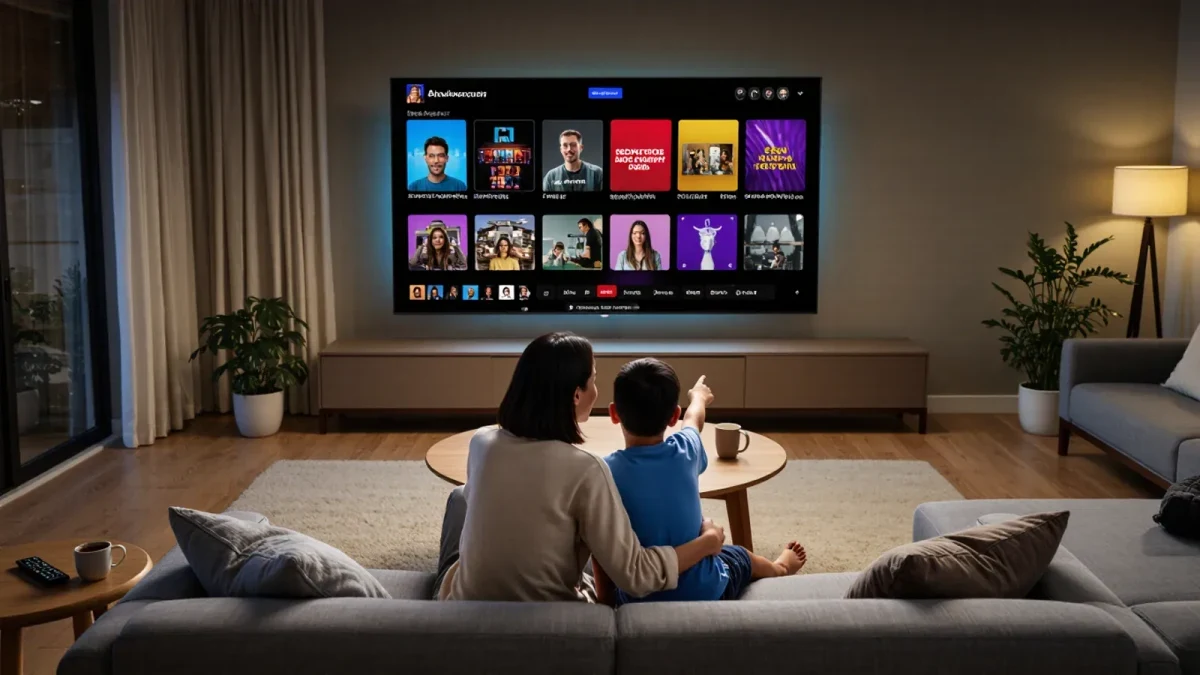
Across the board, a kids' profile filters the catalog to child-appropriate titles, changes the interface to a simpler design, and removes or restricts features that depend on mature content. They typically exclude the service's adult-oriented originals, hide ratings cards for mature shows, and disable purchases or make them PIN-protected. Most also keep kids' viewing history separate, so recommendations inside the kids' profile are shaped only by what the child actually watches there. That last point matters more than parents expect: a kids' profile that starts on cartoons stays on cartoons, which is the entire value of setting one up rather than letting children use yours.
Two cautions apply everywhere. First, a kids' profile is only as strong as its PIN; if your exit code is a birthday the child knows, every setting is decorative. Second, appropriateness filters are broad by necessity. A profile tuned for ages seven and up will include content some seven-year-olds will find scary, because ratings systems band wide ranges together. The profile narrows the field; it does not finish the job of selection for you.
How do the major services compare?
The table below summarizes the widely documented kids' profile features of the largest general-audience streaming services as of late 2025. Features, age bands, and policy details change with app updates, so treat this as a starting map rather than a permanent record.
| Service | Kids' profile | Age customization | Notable parental controls |
|---|---|---|---|
| Netflix | Yes, dedicated kids profiles | Kids profile by default; titles carry maturity ratings; a small number of profile-level maturity settings | Profile PINs, kids-specific interface, viewing history and title removal tools |
| Disney+ | Yes, kids profile option | Profile content ratings setting (e.g., Junior level for youngest viewers), subject to change | Profile PIN, kids UI with simplified navigation, groupwatch restrictions vary |
| Amazon Prime Video | Yes, kids profile | Age band chosen at profile creation | Profile PIN, purchase restrictions, viewing-history controls |
| Max | Yes, kids profile | Young-kids and older-kids style bands, subject to change | Profile PIN, kids homepage, maturity filtering within kids catalog |
| Apple TV+ | Yes, via child accounts in Family Sharing | Tied to the child's age on the Apple account | Ask-to-buy ecosystem, content restrictions, purchase controls |
| Paramount+ | Yes, kids profile | Kids mode with broad catalog filtering | Profile PIN options, kids homepage (features vary by region) |
Which service has the strictest defaults?
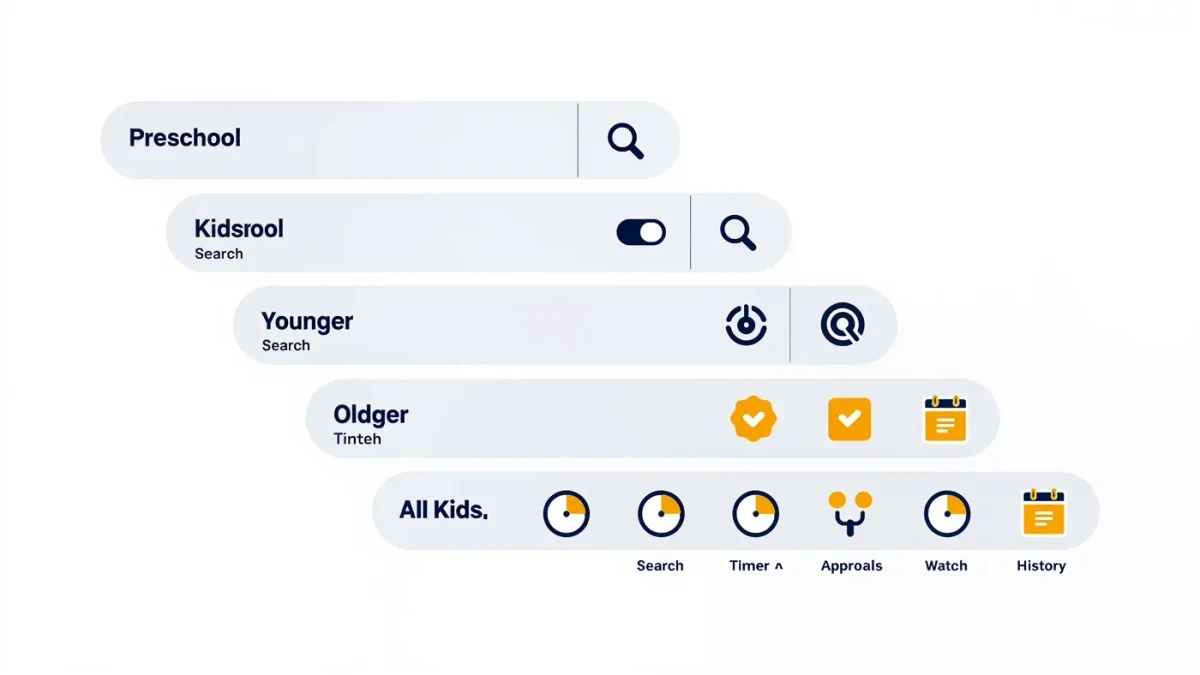
Among general services, Disney+ skews youngest by catalog design, since most of its library was built for family audiences, and its kids profile leans on a simplified interface with an option oriented to preschool viewers. Netflix and Prime Video take the opposite approach: enormous catalogs with hard filtering, where the kids' profile excludes far more than it includes. Apple's system is strict in a different way, because parental restrictions are tied to the child's Apple account age and the family-sharing structure rather than a per-profile switch. Strictness, though, is not the same as fit. A service whose catalog matches your child's taste will need fewer overrides than one whose kids mode is a small room.
How do you set profiles up so they actually hold?
Start with one adult owner. Whoever manages the account should create every profile, set every age band, and keep the master PIN private. Give each child their own profile even if they watch similar things, because recommendations and history stay honest that way. Then walk through four checks: the profile's maturity setting, the autoplay toggle, purchase protection, and whether the main profile requires a PIN to enter. Autoplay deserves special attention with kids, because it quietly drives most of the extra episodes and the late-night watching that parents later discover in viewing history.
- Create a separate profile per child, with an honest age setting.
- Protect the adult profiles and settings with a PIN the child does not know.
- Turn off autoplay inside kids' profiles so watching requires a small decision.
- Check purchase and rental restrictions before adding any payment method.
- Review each profile's viewing history monthly; it is faster than arguing from memory.
What are the honest limitations?
No service's kids filter is a rating board. Catalogs are licensed across regions, so the same profile can hold different titles in different countries. Live channels, sports add-ons, and some short-form or user-style content areas often sit outside kids filtering entirely. And the maturity labels services apply are their own, which means they do not always match the letter ratings you know from theaters. When a specific title matters, look up its rating and content notes directly rather than trusting the profile to have caught it. This article is information, not professional advice, and the surest control remains a parent who knows how to open the settings page.
A final practical note: revisit the whole setup once a year, ideally at the start of the school year or after a birthday. Children age into content faster than profiles do, and a kids' profile that fit a seven-year-old can feel infantilizing to a nine-year-old, which invites workarounds. Moving the maturity setting up deliberately, with a conversation attached, keeps the system honest and keeps your child cooperating with it instead of around it.