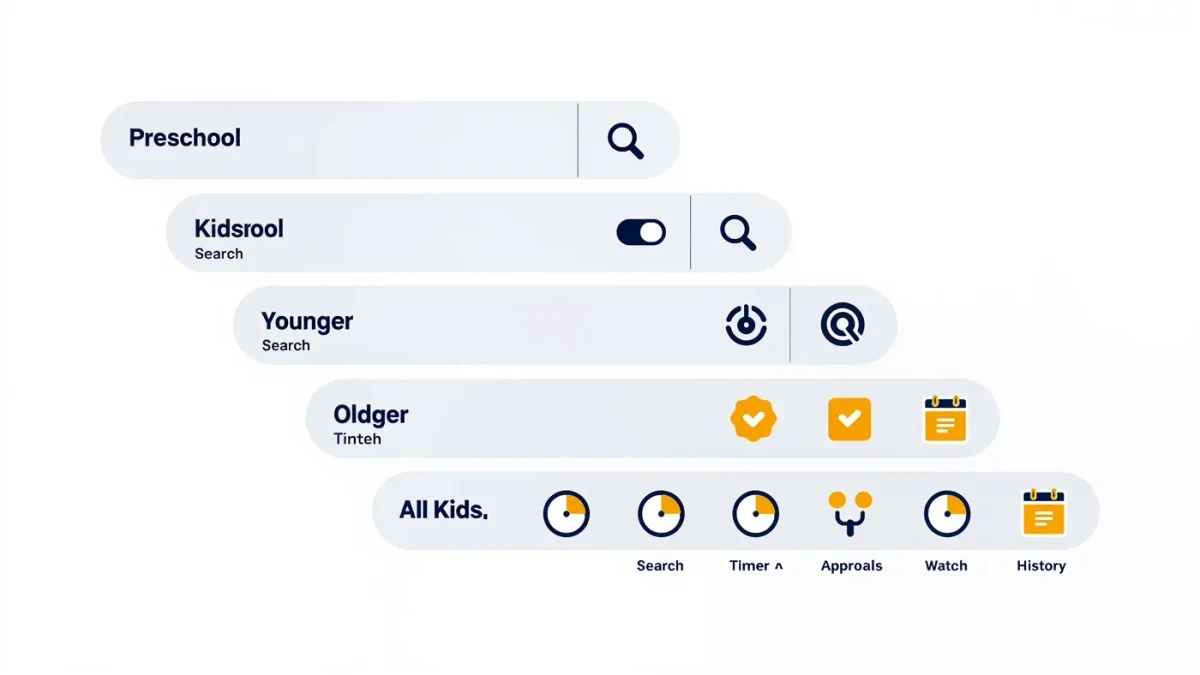
YouTube Kids is a separate, free app from Google that shows child-oriented videos inside boundaries you set as a parent. It offers content categories by age, a search toggle you can switch off, and a parent dashboard for limiting screen time and blocking videos or channels. It is a filter, not a guarantee: algorithms occasionally surface odd choices, so the app works best when an adult stays involved rather than treating it as a closed sandbox.
What is the difference between YouTube and YouTube Kids?
The main app is open to everything uploaded by everyone, with age gates and warnings but no pre-screening of most content. YouTube Kids is a separate app built for children, with a smaller pool of videos, no direct messaging between users, and parental controls at its center. Comments are disabled, and search can be turned off entirely. The tradeoff is that the catalog is narrower, and some popular creators and formats either never appear or appear in edited form, which older children often notice and resent.
Google also offers a middle path: supervised accounts, sometimes called supervised experiences, which let a child gradually move toward the main app with age-appropriate settings while you retain visibility. Many families use YouTube Kids for early elementary ages and supervised accounts as a bridge toward full independence in the teen years. The exact features and age bands of these options have changed over the years and may change again, so check the app's current settings pages rather than relying on older guides, including this one.
How do you set up a child's profile correctly?
Setup runs through your own Google account, not the child's, and that design matters. You create a profile for each child, pick an age group, and decide whether search is on or off. With search off, the child sees only videos the app's system has already curated for that age band. With search on, they can look up anything within the kids' catalog, which is broader but less predictable. For young children, most experts recommend starting with search off and relaxing it as the child demonstrates judgment.
- Create a separate profile per child so age settings actually match each kid.
- Choose the youngest accurate age band; you can raise it later.
- Turn search off for first use, then revisit the decision together.
- Set a timer in the parent settings before handoff, not after.
- Review watch history regularly; it is the honest record of what the filter actually did.
What do the parental controls actually cover?
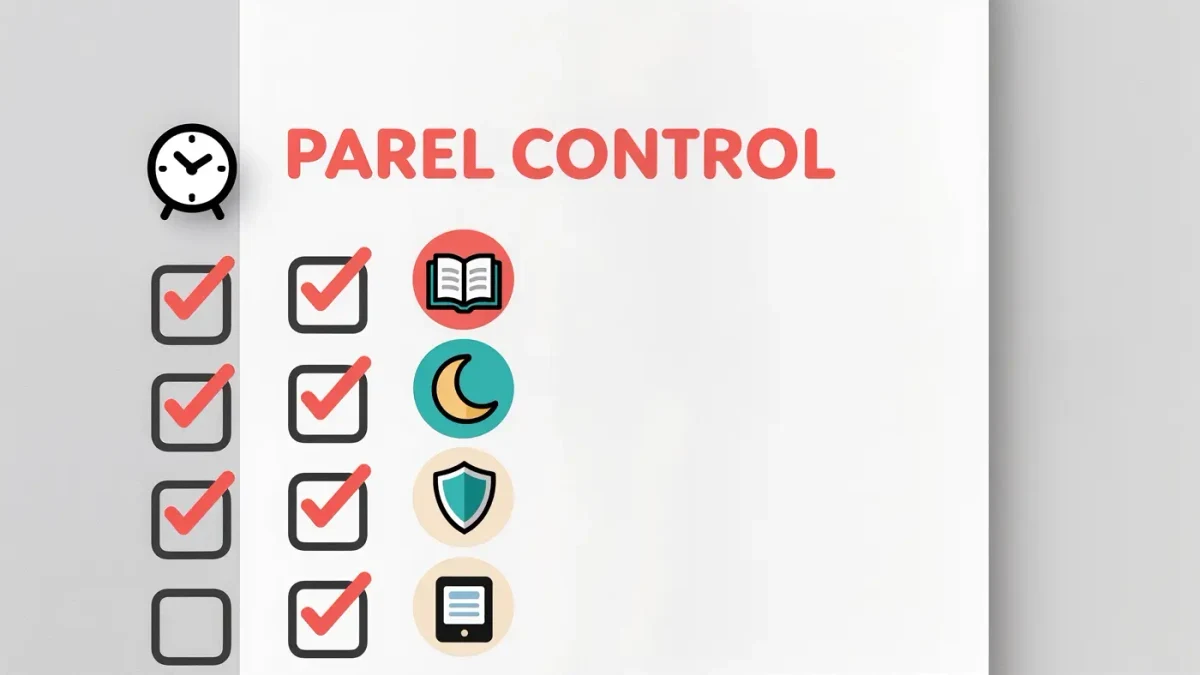
The built-in controls fall into four groups: content level by age, search on or off, a built-in timer, and manual approvals. The approval system is the strongest tool many parents never use: you can pre-approve specific channels or videos, and the app then shows only that collection, which turns YouTube Kids into something closer to a small personal library. Blocking works the other way, removing a video or channel from your child's feed. All of these settings live behind a parent passcode that you should not share, because a shared passcode turns every control into a suggestion.
Be honest with yourself about what the controls do not do. They do not watch the video before your child does; automated systems and human review catch most problems, but unusual or newly uploaded content can slip through. They also do not judge quality. Plenty of technically permitted videos are loud, fast, and empty. The timer limits duration, not merit, and that distinction is where your involvement comes in.
Where does YouTube Kids fall short?
The documented weak spots have stayed consistent for years. Autoplay can carry a child from a fine video into a stranger's recommendations within minutes, so many parents disable autoplay alongside search. Videos that game the system, such as knockoff cartoons with familiar characters, occasionally appear and can be disturbing or low quality. Ads run on much of the content, and while they are held to stricter rules for children's programming, children rarely distinguish ads from shows without an adult naming the difference. Finally, the app collects less data than the main service, but privacy advocates have repeatedly pushed regulators and Google over exactly what is collected; the regulatory picture has shifted before and may shift again.
The practical answer to all of this is co-viewing at a manageable frequency. Sit with your child for a few sessions a month, watch what the algorithm serves after the chosen video ends, and talk about anything that feels off. Children as young as five can learn to say this one is weird and close it, and that habit transfers to every app they will ever use.
How much should a child use it?
There is no official number, and quality beats quantity. The app's timer helps enforce whatever limit your family sets, and consistency matters more than the specific figure. Pediatric guidance in many countries suggests keeping plenty of daily time free for unstructured play, sleep, and conversation, and treating video time as one option rather than the default. If the app is the only thing standing between you and dinner, using it occasionally is fine; the goal is simply that it does not silently become every evening's plan.
A useful pattern is to give the app a job: fifteen minutes of a chosen show after school, or a music-and-dance session on a rainy morning. When the app has a defined purpose, children stop negotiating for it constantly, because it stops being an infinite place and becomes a specific activity.
The short version
YouTube Kids is a well-built fence with gaps. Set profiles accurately, turn off search and autoplay for young children, use approvals and the timer, review watch history, and stay nearby enough to catch what the filter misses.